IRCB
Welcome to Interface Radio City Band
The application to operate CB radio equipment via voice from your computer.
Key Features
- Multilingual: Available in six languages. German, Spanish, French, English, Italian and Portuguese.
- Intuitive Interface: Control your CB radio equipment easily from the program’s main window.
- Customizable Settings: Adjust microphone gain, speaker volume or the appearance with a single click.
- Macro function: customizable macros with auto-callers, beacons, etc.
- Ease of Use: Designed to be intuitive and easy to use. IRCB lets you focus on communication without technical hassle.
- Quick Setup: With just a few adjustments, the program will be ready to use.
- Custom Roger Beeps: choose one of the included RBs or add your own.
- Free: IRCB is a complete application you can use to operate in voice mode. It’s completely free with no usage limits.
Requirements:
- To use IRCB you only need a CB radio with an auxiliary speaker output.
- A physical interface connecting the radio to the PC via sound card and a module to control PTT through the CH340 driver.
If you’d like one like the one I use, built by our friend EA5PR (Rubén), you can contact him directly by clicking here. - A computer running 64-bit Windows 10 or 11.
- FFmpeg (required). Must be installed before starting IRCB.
This program is developed by and property of Acuántico Power. Its distribution outside this page is not allowed.
Your feedback matters to me. For suggestions or questions, contact me.
Thanks for choosing IRCB! Wishing you good radio!
Setup and installation
Installing FFmpeg: in the program’s own folder you’ll find the file install-ffmpeg.bat. Run this file as administrator to automatically download and install FFmpeg on the system. This step is required for macros and Roger beep to work correctly.
File structure
The package has the following structure. The config.json file is created automatically the first time you start the program.
IRCB/
|– ircb.exe
|– install-ffmpeg.bat
|– images/
| |– ircb.ico
| |– back.jpg
|– rbeep/
| |– beep1.mp3
| |– beep4.mp3
|– config.json
Keep the folder names images and rbeep as they are. The executable looks for resources at these relative paths.
First run
- Run
install-ffmpeg.batas administrator if you haven’t installed FFmpeg yet. - Connect the CH340 interface and check that Windows assigns it a COM port.
- Double-click
ircb.exe. - Open the Settings button to select audio devices, COM port and media resources.
- Save. On restart, the configuration stored in
config.jsonwill be used.
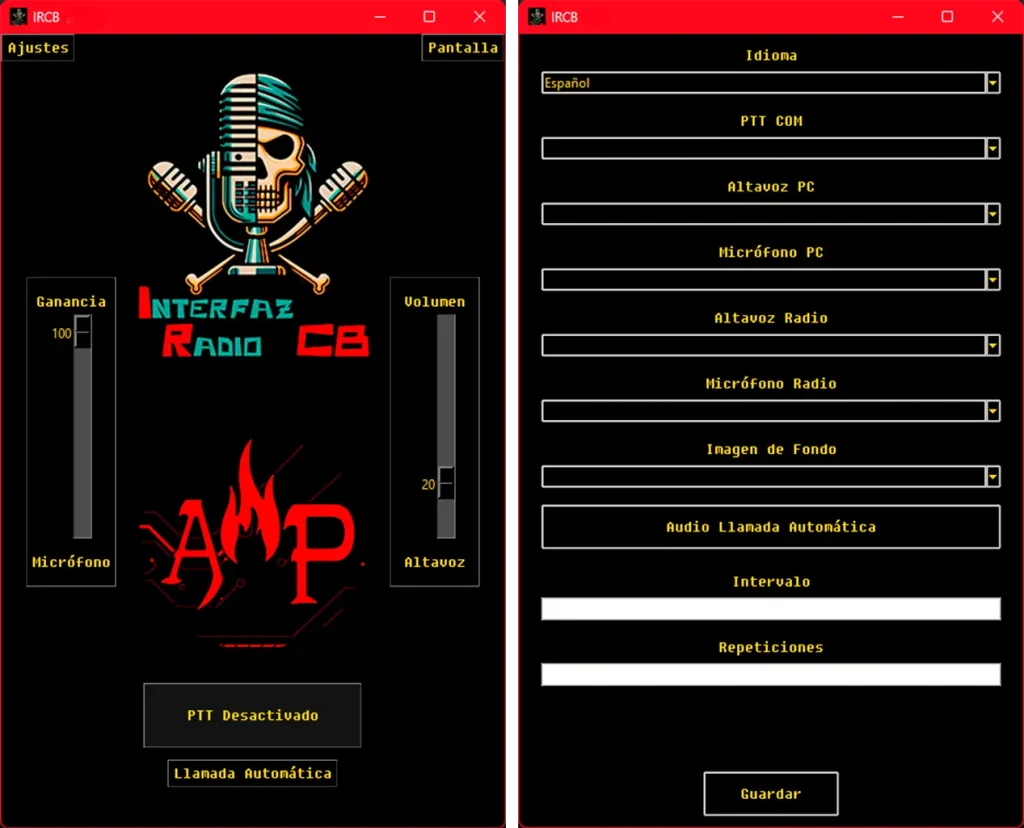
Main interface
Top area
- Settings: opens the general configuration window.
- About: shows the installed version and a shortcut to acuanticopower.com/ircb.
- Window/Screen: toggles between windowed and full-screen mode.
Center panel
The center of the interface is taken up by the audio level sliders. From here you control the balance between the configured inputs and outputs. They’re displayed over the selected background image.
Bottom controls
- PTT button: located right below the sliders. Turns red when transmission is active.
- Macro buttons: found below the PTT. Each macro shows its status with a distinct color and locks the manual PTT until it finishes.
Settings window
General settings
- Language: select the desired language.
- COM Port: choose the port assigned to the CH340. The program validates the connection when saving.
- Background image: select any
.jpgfile insideimages.
Audio and devices
Select the PC’s and the radio’s input and output devices separately. Changes are stored for future launches.
Transmission macros
- Assign an audio file to each macro (
.mp3,.wavor.oggformats). - Set repetitions and intervals to automate messages.
Roger beep
- Selection: the dropdown includes all files in
rbeepalong with the Off option to disable it. - Test button: plays the sound on the device assigned to the radio without opening any console windows.
- Updating: to add new beeps, copy the file into
rbeepand restart the application.
Using macros
- Press the desired macro button (located below the PTT).
- The program activates the PTT, plays the audio and respects the configured repetitions and intervals.
- When finished, the PTT returns to its previous state.
Recommendations
- Normalize all audio files to avoid clipping.
- Keep macros under three minutes to avoid tying up the channel.
- Keep backup copies of critical audio files on external storage.
Testing and selecting a Roger beep
The test playback goes through the speakers feeding the radio, so the operator hears exactly what recipients will hear.
- Select a file from the dropdown.
- Press Test to hear it instantly.
- Adjust the volume from the external audio interface or the Windows mixer.
If you change files in rbeep while the program is open, reopen Settings to refresh the list.
Troubleshooting
| Síntoma | Diagnóstico | Acción recomendada |
|---|---|---|
| No se abre el puerto COM. | El CH340 está en uso por otro programa o sin permisos. | Cierra otras aplicaciones, desconecta y conecta de nuevo la interfaz o cambia el número de COM en el Administrador de dispositivos. |
| No se escucha una macro. | El dispositivo de salida configurado no coincide con el hardware activo o falta FFmpeg. | Revisa la sección Audio en Ajustes y confirma que FFmpeg está instalado correctamente mediante install-ffmpeg.bat. |
| El audio se corta o distorsiona. | El archivo tiene un nivel demasiado alto o se está saturando la interfaz. | Reduce la ganancia en tu mezclador o vuelve a exportar el archivo con un margen de -6 dB. |
| El Roger beep no suena. | Está seleccionada la opción Off, el archivo fue eliminado o falta FFmpeg. | Selecciona otro archivo en el desplegable y asegúrate de haber ejecutado install-ffmpeg.bat. |
Changelog
10/27/2025
IRCB-v1.3
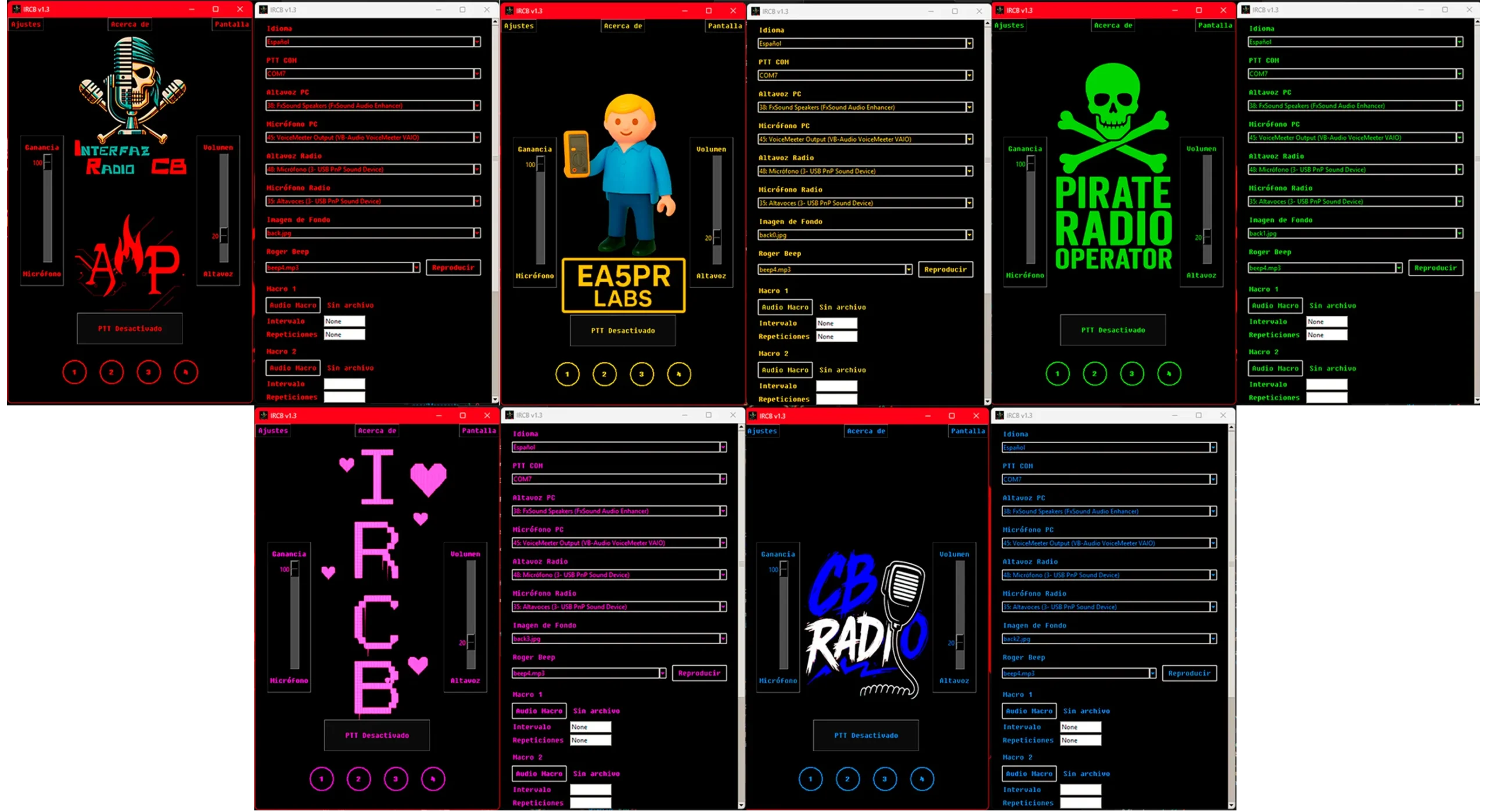
Release with Roger Beep function. The auto-call function is replaced with 4 customizable macros. A theme system is added to change the font color and background image. New background images. The PTT system is replaced to avoid Windows conflicts that occasionally required reinstalling the serial driver.
08/14/2025
IRCB-v1.2
With a fix to reduce the time delay between releasing the PTT and returning to RX state after the RB finished playing. Not published.
06/21/2025
IRCB-v1.1
To celebrate 500 downloads and the first anniversary, with the implementation of the Roger Beep function. Never published due to personal dissatisfaction with how the RB worked.
07/11/2024
IRCB-v1.0. First version released. A tool built around simplicity in every aspect.