aprStar

A Simple App for APRS Messaging
aprStar started out as a personal tool for the Experimental APRS Messaging Network on the FreeBands (REM), a system for sending and receiving APRS messages on license-free bands. However, thanks to Direwolf, this software can be used on any radio band, opening it up to ham radio operators all over the world.
I want to share it with all of you in case it’s useful.
What is aprStar?
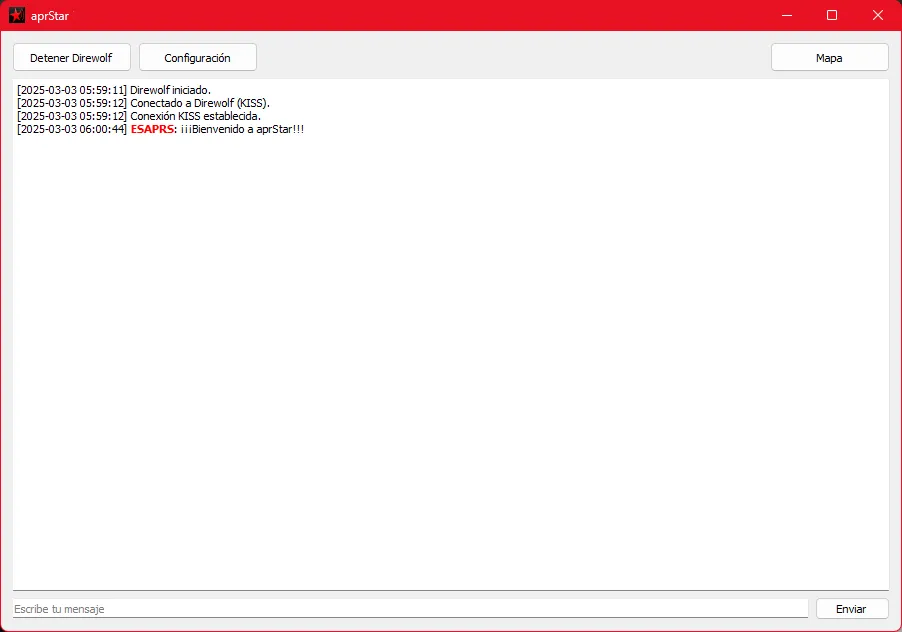
It’s an app for sending and receiving text messages that acts as a bridge between traditional radio and digital technology, enabling APRS communication through AX.25 frames and the KISS protocol. With a simple, intuitive interface, aprStar offers a practical and powerful way to send and receive APRS messages, both on REM and on any other frequency.
Main Features
- Simple graphical interface: With a real-time chat window.
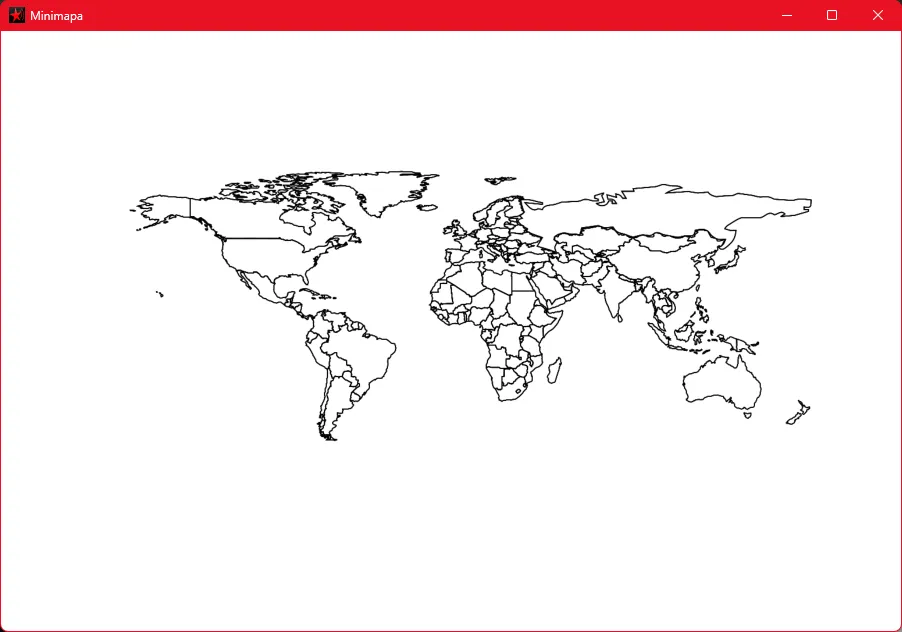
- Mini map: See the locations of the stations you receive in real time on a lightweight map.
- Sending and receiving APRS packets: Uses KISS to pass data to Dire Wolf, which transmits it through the radio.
- Quick setup: Save your callsign and coordinates for a faster experience.
- Support for any band: Originally designed for REM, but suitable for VHF, UHF and HF depending on the hardware available.
Installing and Configuring aprStar
1. Downloading aprStar
- Download the latest version of aprStar from the link provided.
- Once downloaded, locate the .rar file on your computer.
2. Preparing the installation
- Extract the aprStar .rar file.
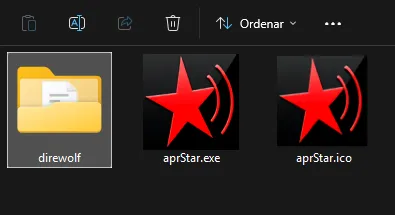
- Find the folder containing the two files and place it wherever you prefer.
3. Downloading and installing Dire Wolf
- Descarga la versión más reciente de Dire Wolf desde su repositorio oficial.
- Make sure you pick the Windows x64 version.
- Make sure you pick the Windows x64 version.
- Once the download is complete, locate the .zip file and extract it.
- Select the folder containing all the Dire Wolf files and rename it to exactly
direwolf(very important!). - Move the
direwolffolder into the same folder where you placed aprStar, making sure the directory structure is as follows:
Dire Wolf Configuration Guide
Dire Wolf is TNC software that can be used with many radios. If you need specific information about how to set up your particular rig, check its user guide.
If you’re using a CB radio and an interface similar to mine, follow these steps.
1. Editing the Configuration File
- Inside the direwolf folder, find and open the
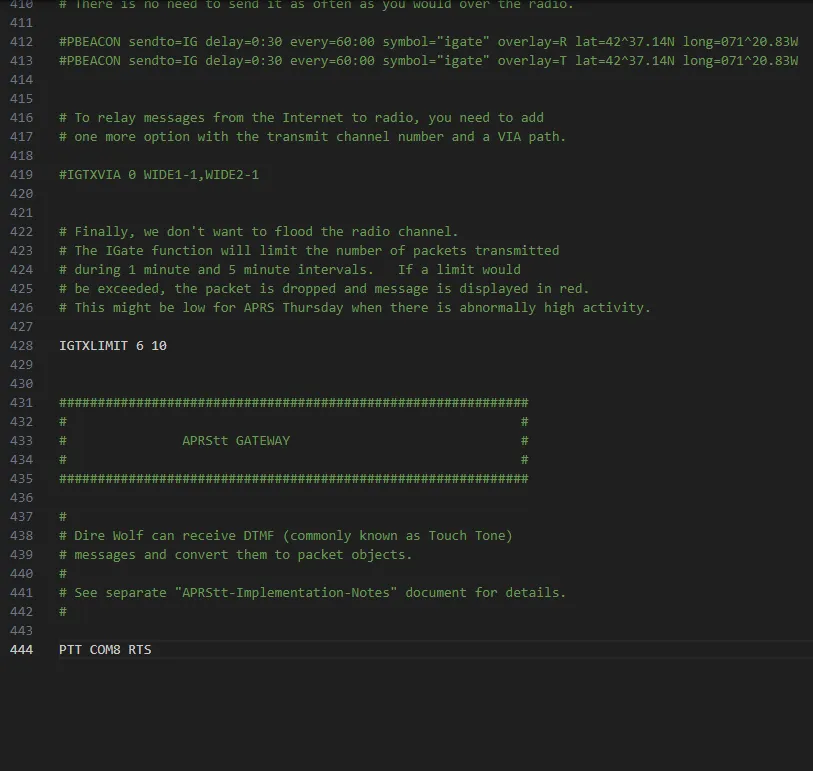
direwolf.conffile in a text editor. - To avoid trouble with commented-out lines, scroll to the end of the file and add the following line:
PTT COM8 RTS - Change the PTT COM8 RTS line to the COM port you’re using for PTT.
- Save the changes and close the file.
2. Setting Up Audio Devices
- Run aprStar.exe.
- Start Dire Wolf from the “Start Direwolf” button
- Open the Windows Volume Mixer and select the right audio devices for input and output.
- Stop Dire Wolf from aprStar.
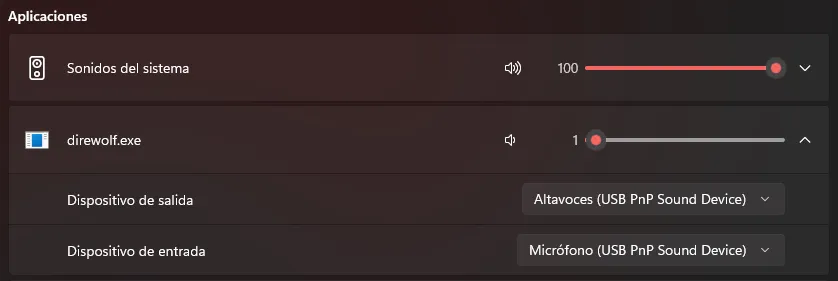
You’ll need to test to get the volume right. It varies a lot depending on the sound card you use, the connection interface…
If you use other similar radio apps, setting the same volume as for those apps is usually enough.
aprStar Setup
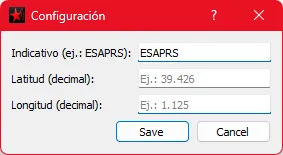
Before you start enjoying aprStar, you’ll need to set your callsign and the approximate coordinates of your location.
Remember that the callsign must be 6 characters and the coordinates must have 3 decimal places.
You can set these by pressing the “Settings” button
Once you’ve entered the data, save it.
Send a Frame, Check That Everything Works, and Have Fun
You’re all set to run the program normally. You can start Direwolf again and the app will stay listening (RX).
Avoid typing accents, special characters or the letter “ñ” in messages. It won’t break anything if you do — they’ll just be replaced with “?”
If you receive a message from another station, you can see its approximate location on the mini map by pressing the “Map” button.
The location is indicative. The map is an image and its accuracy can vary depending on where the station is, so it may not show the exact location faithfully.
Keep in mind that this is a simple program built by ChatGPT to meet a personal need. Support is limited and it isn’t free of bugs or glitches.
Enjoy it and have fun receiving and sending messages with other stations. Call CQ, use the REM network, or put it to any other use you can think of.