NMN1M: logbook for amateur radio and 11 metres / CB
Developed in the Acuántico Power laboratory
‘Nunca Más, Ni Una Más’ is a logbook for amateur radio and 11 metres/CB: it records your contacts, manages several logs, plots stations on a map, displays live statistics, detects duplicates, and integrates rigctld, HamQTH, and WSJT-X.
It can be installed as a straightforward standalone application, with no need for PoorSDR4All, or as a PoorSDR4All plugin. When integrated, it appears under the console’s Log button and opens the same application in a separate window, also using the visual theme selected in PoorSDR4All.
Nunca Más, Ni Una Más (NMN1M)
Logbook and contest logger for amateur radio and 11 m/CB. Standalone application or PoorSDR4All plugin.
NMN1M for Windows
Windows executable ready to use as a standalone application, no Python needed. Download NMN1M_Windows_x64.zip from Releases, extract it, and open NMN1M.exe.
What NMN1M is
NMN1M combines a general-purpose logbook with contest features. The General and 11m logs are always available: the first uses amateur-radio callsigns and entities, while the second recognizes the usual 11-metre divisions. Optional templates adapt the form, columns, and exports to each contest.
poorsdr-libro-guardia. PoorSDR4All is not required.Download and installation
The main download is the complete source code hosted on GitHub. NMN1M requires Python 3.11 or later and Tkinter. Before installing, check that Python and its Tk graphical interface are available on your system.
Linux
unzip nmn1m-main.zip
cd nmn1m-main
python -m pip install .
poorsdr-libro-guardia
If you prefer Git:
git clone https://github.com/Acuantico/nmn1m.git
cd nmn1m
python -m pip install .
poorsdr-libro-guardia
Windows
With the executable (the easiest way): download NMN1M_Windows_x64.zip from Releases, extract it to a folder, and open NMN1M.exe. You do not need to install Python. Keep NMN1M.exe and the _internal folder together. Settings are saved in %APPDATA%\poorsdr and the logs in %LOCALAPPDATA%\poorsdr.
The first version of the executable (1.0.0a1) was courtesy of juanmmmmmmm, who compiled it. Thank you! The executable works as a standalone application; if you want to integrate it with PoorSDR4All, install it with Python or with the PoorSDR4All graphical installer.
With Python: download and extract the source ZIP, open PowerShell in the folder, and run:
py -m pip install .
poorsdr-libro-guardiaINSTALL_PLUGIN_NMN1M=1 with its scripts/install.sh. To do it by hand, install NMN1M with the same Python interpreter or virtual environment used by PoorSDR4All. When you reopen the console, the Logbutton will appear. NMN1M does not need to be copied into the PoorSDR4All directory.To update an installation made from Git, enter the repository directory, run git pull and then run python -m pip install --upgrade .
First run
- Open Settings → Station / activity and enter your amateur-radio callsign, your 11-metre callsign or identifier if you use that log, and your locator.
- In Main logs, choose General or 11m. The active log is marked with ✓ and its name remains visible in the header.
- If you want frequency and mode to come from the radio, configure rigctld under Settings → Radio / rigctld.
- Log a test QSO, check that it appears in the table, and create an initial backup.
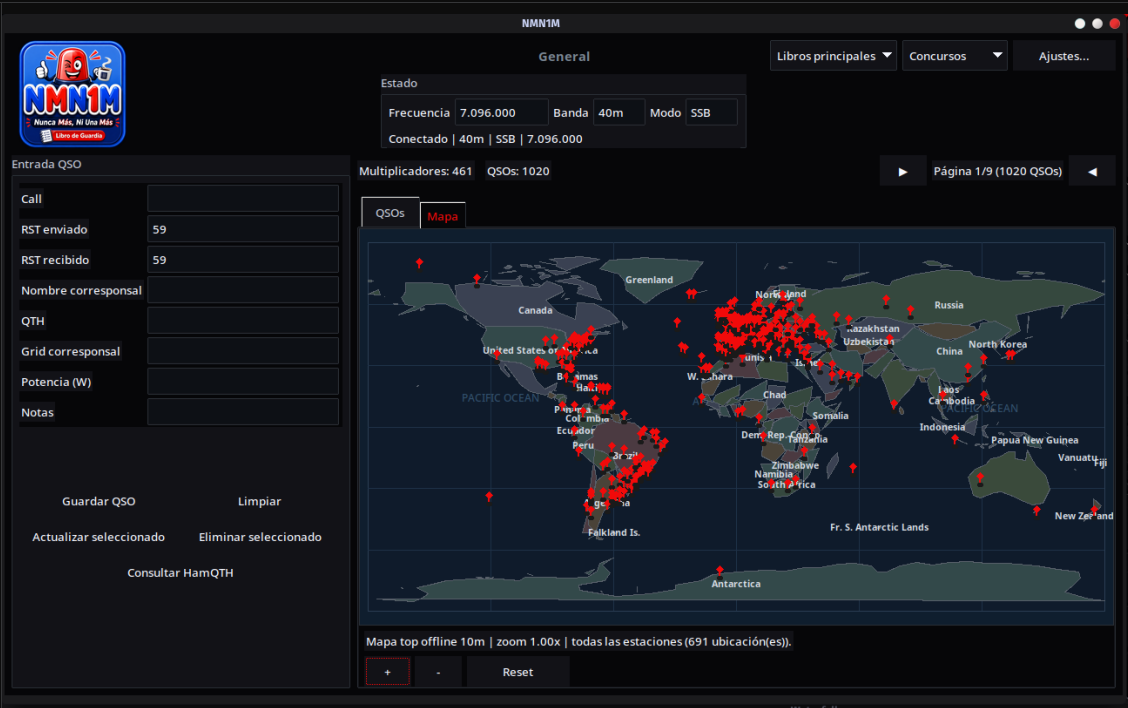
Main window
Header and status
| Item | Function |
|---|---|
| Main logs | Switches between General and 11m. The active log is marked with ✓. |
| Contests | Shows the installed contest templates and the Import template…. |
| Settings… | Opens radio, station, log, and synchronization settings. |
| Frequency / Band / Mode | These can be read from rigctld or entered manually. The band is calculated automatically from the frequency. |
| Radio status | Shows whether rigctld is connected, disconnected, or trying to reconnect. |
QSO entry
| Field or control | How to use it |
|---|---|
| Callsign (Call) | Identifies the country or division and displays its flag and name. It also warns if the callsign has already been worked on the current band and mode. |
| Quick command from Call | If you enter a mode —USB, LSB, CW, AM, FM, FT8, FT4…— or a frequency in MHz and press Enter, NMN1M tries to send it to the radio instead of saving a QSO. |
| RST sent / received | Signal report. The form suggests initial values based on the active log or contest. |
| Automatic serial | Only appears when the contest template uses serial numbers. It suggests the next available number. |
| Name, QTH, Grid, Power, and Notes | Additional contact details. Visible fields may change according to the template. |
| Look up on HamQTH | Looks up the callsign manually. If credentials are configured, the automatic lookup begins after a short pause while typing. |
Table and map
- QSOs: a paginated table with 120 contacts per page. Click a column heading to sort, or a row to load that contact into the form.
- Multipliers / QSOs: counters updated according to the active log and filters.
- Map: use the mouse wheel to zoom, drag to pan, click a station to select it and filter the table, and double-click to restore the full view. The +, −, and Reset buttons provide the same controls.
- Names on the map: they appear according to the zoom level and never overlap. From afar only countries, capitals, and the largest cities are shown; as you zoom in, more appear, down to small towns at maximum zoom, always those inside the current view. If you select a station, the route from My QTH is drawn (cyan line) with the distance in kilometres.
Logging, correcting, and deleting a QSO
- Check the frequency, band, and mode.
- Enter the callsign. Check the country and any duplicate warning.
- Complete the RST and any other details you need.
- Click Save QSO or press Enter.
Clear empties the form and restores its initial values. To correct a contact, select it in the table, edit the form, and click Update selected. To delete it, select it and use Delete selected; NMN1M will ask for confirmation.
Settings window
Radio / rigctld
Configure the rigctld server host and port —the default is 127.0.0.1:4532—. You can connect, disconnect, request an immediate reading, enable periodic polling, and have NMN1M connect automatically at startup. This tab also controls forwarding WSJT-X UDP traffic to another application.
Station / activity
Stores your amateur-radio callsign, optional 11-metre identifier, locator, current activity or contest name, and HamQTH credentials.
Log
- Selects which log or template you manage and which database it uses.
- Creates, loads, renames, or deletes separate databases for the same template.
- Imports CSV or ADIF records. With the Spanish Municipalities Award (DME) template, the DME reference and the municipality are filled in too.
- Creates a backup of the current database.
- Transfers a contest into the corresponding General or 11m log, with a preview before confirmation.
- Exports CSV and ADIF; compatible contest templates also support Cabrillo.
- Opens the directory where logs are stored.
- Enables automatic reception of QSOs logged by WSJT-X.
Synchronization
Lets you run this computer as a server and configure others as clients. All of them must use the same port and shared key.
Interface
Text size: choose Normal, Large, or Extra large if you need bigger text. It applies immediately, without restarting, and it also enlarges the forms, the table cells, and the map labels. The window keeps its size: if the text does not fit, scroll bars appear (you can also use the mouse wheel).
Contest templates
General and 11m are the two main logs and are always available. Contest templates are optional add-ons: they change the form, columns, multipliers, and exports according to the rules covered by each template.
The repository currently provides templates for CQ WPX, CQ WW RTTY, DME (Spanish Municipalities Award), IARU HF and SM in the contest-templates/.
- Download only the
.pyfile for the contest you intend to use. - Open Contests → Import template….
- Select the file and confirm its name and log type.
- The template becomes available immediately; no restart is required.
Integration with WSJT-X and rigctld
Reading and controlling the radio through rigctld
NMN1M does not open the CAT port directly: it connects to a rigctld server. If you use PoorSDR4All, enable its rigctld proxy and connect NMN1M to the configured address and port. This lets the console, NMN1M, and other compatible programs share access to the radio.
Receiving QSOs from WSJT-X
In Settings → Log, enable Listen for WSJT-X over UDP. NMN1M’s default port is 2237; configure WSJT-X to send its UDP messages there. When WSJT-X logs a contact, NMN1M adds it to the active log.
If another program also needs those messages, enable UDP forwarding and specify its host and port —the default destination is 127.0.0.1:2240—. NMN1M then receives the packet and forwards a copy to the next program.
Synchronization between computers
Synchronization keeps the General and 11m logs and contest templates up to date across several computers on the same local network. Each QSO has a stable identifier: additions, changes, and deletions are exchanged in both directions without being duplicated when the operation is repeated.
Configuring the server
- Open Settings → Synchronization.
- Choose the listening address and a port; the initial value is
8080. - Enter a shared key that is not easy to guess.
- Enable the server and apply the changes.
- Make a note of the local IP address shown by NMN1M.
Configuring a client
On the other computer, enter the server IP address, the same port, and the same key. Click Synchronize now. If the same QSO has changed on both computers, the most recent revision is kept. To synchronize a contest template, it must be installed with the same identifier on the receiving computer.
Synchronization is not a substitute for a backup: it also replicates changes and deletions.
Where your data is stored
On Linux, settings are stored in:
~/.config/poorsdr/libro-guardia/settings.jsonLogs, backups, and SQLite databases are stored under:
~/.local/share/poorsdr/libro-guardia/On Windows and macOS, the equivalent user configuration and data directories are used. Each selected log or database keeps its QSOs in its own SQLite file. Data is not stored inside the installed package, so reinstalling or updating NMN1M should not remove it.
Keyboard shortcut
| Shortcut | Action |
|---|---|
| Enter | Saves the QSO from any field in the form. If the focus is in Callsign, it first tries to interpret the content as a frequency or mode intended for the radio. |
Troubleshooting
| Problem | What to check |
|---|---|
| The Log button does not appear in PoorSDR4All | Check that NMN1M is installed in the same Python environment as PoorSDR4All, then restart the console. |
| It does not connect to the radio | Confirm that rigctld or the PoorSDR4All proxy is running, that the host and port are correct, and that the firewall is not blocking the local connection. |
| WSJT-X does not add contacts | Check that UDP reception is enabled, that both programs use the same port, and that WSJT-X has actually logged the QSO. |
| No country or flag appears | Check the callsign and selected log. General uses amateur-radio prefixes and 11m uses CB divisions; some special callsigns may need manual correction. |
| Synchronization fails | Check the IP address, port, shared key, firewall, and that both computers are on the same LAN. Make sure the port is not already in use. |
| I cannot export Cabrillo | Cabrillo is only available when the active contest template implements that export. |
Related station tools
See Your first amateur radio rig for the wider station context, the PoorSDR4All wiki for uSDX control and SDR integration, and IRCB for connecting other transceivers to a Windows PC.
License, data, and support
NMN1M’s original code is distributed under the PolyForm Noncommercial 1.0.0. It is source-available software, not an OSI-approved open-source license. Commercial use requires a separate agreement with Acuantico Power.
GeoNames data retains its CC BY 4.0 license, and flag-icons resources retain their MIT. Full license texts and attributions are included in LICENSE, LICENSES/ and DATA_PROVENANCE.md in the repository.