Guide – Tutorial: Installing Flux with Pinokio
This step-by-step guide to installing Flux with Pinokio shows you how to get one of the most powerful image-generation models running directly on your PC. Pinokio is basically the Steam of AI apps: it lets you install and run models like Flux, LLaMA, Stable Diffusion or Whisper without touching the terminal or wrestling with obscure dependencies. All from a friendly interface, locally and headache-free.
Prerequisites
Before you rush off and download anything:
- Operating system: Windows 10/11, macOS (Intel or Apple Silicon) or Linux.
- Disk space: at least 10 GB free (more if you install large models).
- Recommended RAM: 8 GB minimum, but better with 16 GB or more.
- GPU: Pinokio itself can run even without a dedicated graphics card, but every application you install has its own minimum requirements. Be sure to check them.
Step 1 – Download Pinokio
- Go to the project’s official website: 👉 https://pinokio.computer
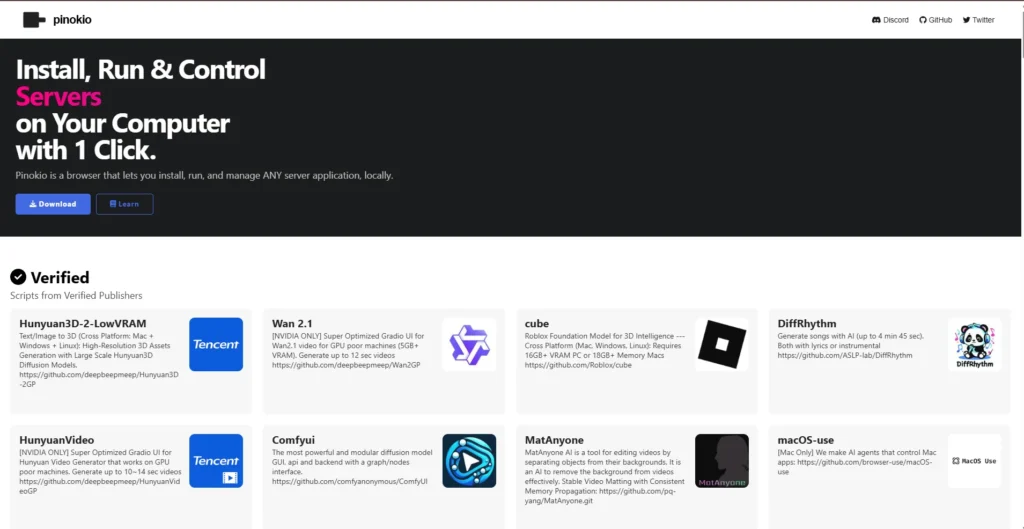
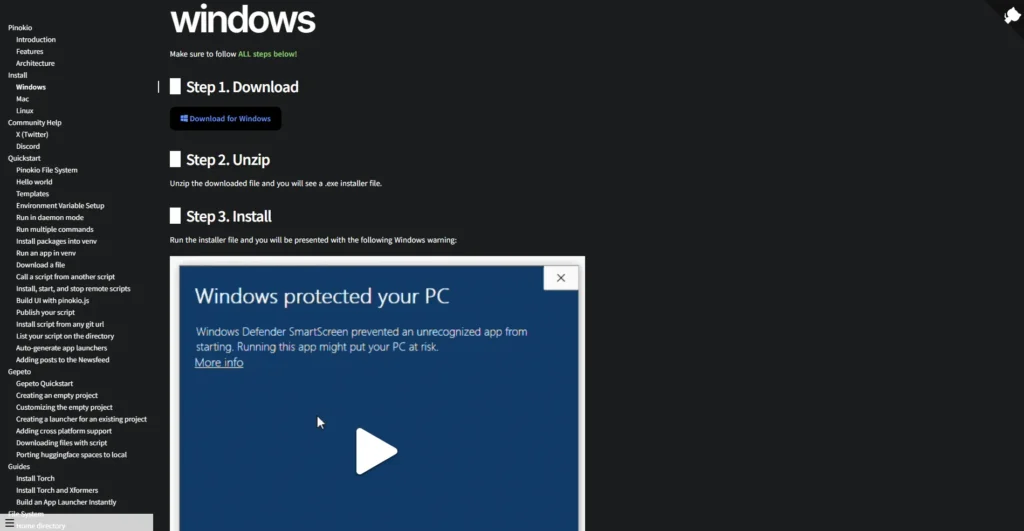
- Click the download button for your operating system:
- Windows:
.exe - macOS:
.dmg - Linux:
.AppImage
- Windows:
Step 2 – Installation
On Windows
- Run the downloaded
.exefile. - Follow the usual “next, next, accept” installer.
- It installs like any other desktop app.
On macOS
- Open the
.dmg. - Drag Pinokio into your Applications folder.
- On first launch, if Apple’s security warning pops up, right-click and choose “Open”.
On Linux
- Make the
.AppImageexecutable:
chmod +x pinokio.AppImage ./pinokio.AppImage
Step 3 – First Launch
When you open Pinokio you will see a browser-style interface.
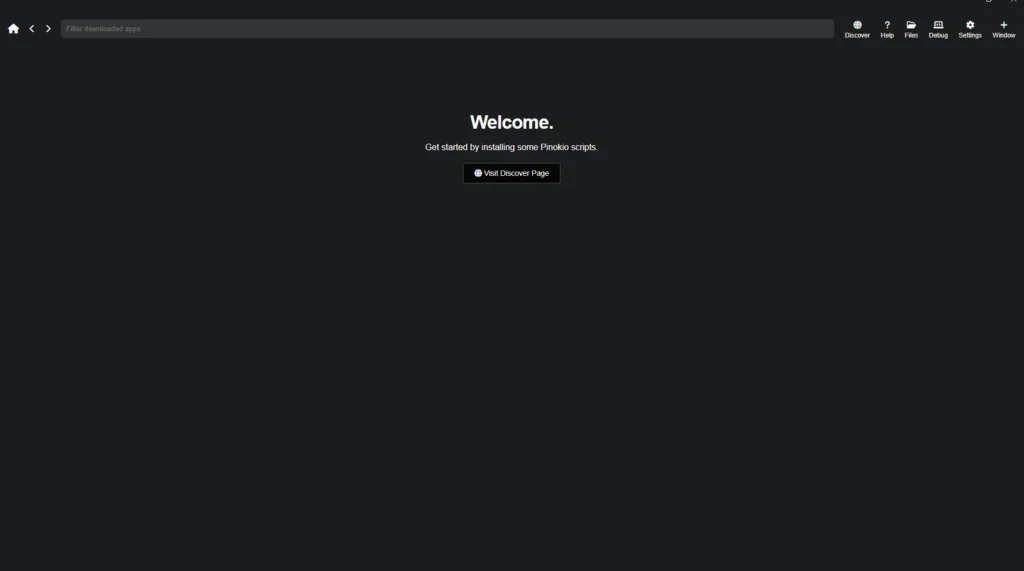
In the top right, click “Discover”, which takes you to a kind of marketplace.
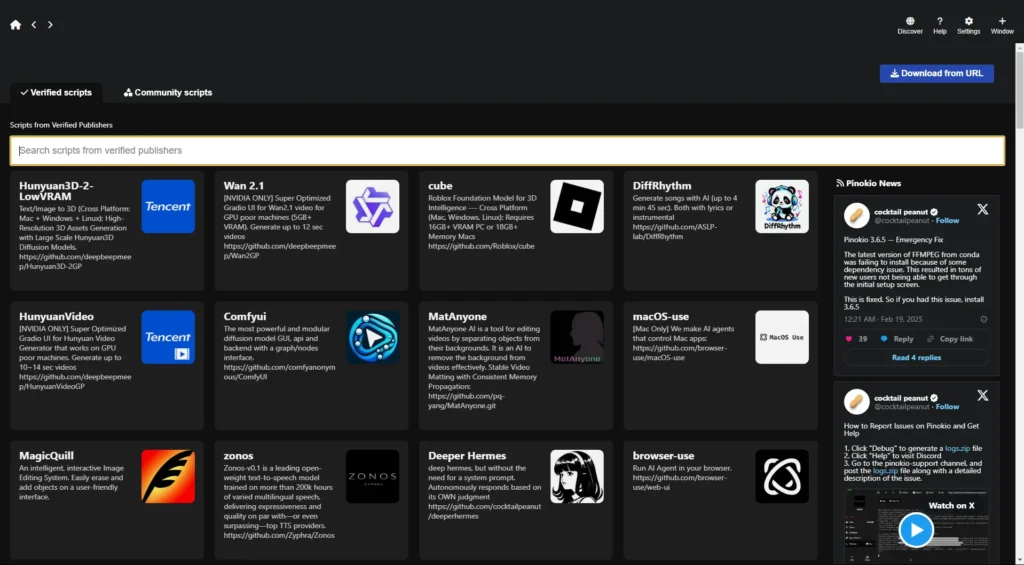
Install Forge to use Flux
A note on FLUX: although it is a demanding model, Flux can run even on machines with just 3 GB of VRAM, as long as you use low resolutions like 512×512 and have a compatible NVIDIA graphics card. That makes it far more accessible than it looks at first glance.
If you do not have a compatible NVIDIA card, go straight for Foocus. You can install it by following the same steps as for Forge.
Scroll or use the search box to find “Forge” and click Download.
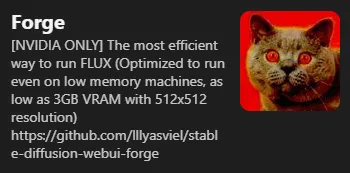
Leave the default name and press “Download” again.
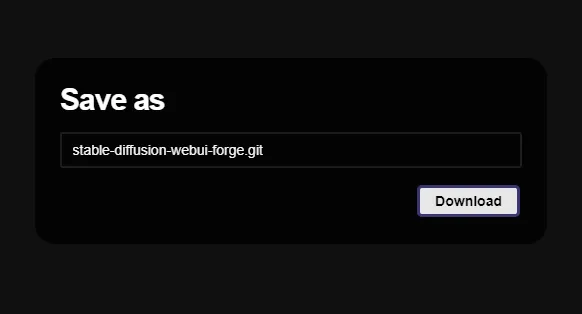
I do not want to repeat myself, but you have to press “Download” once more.
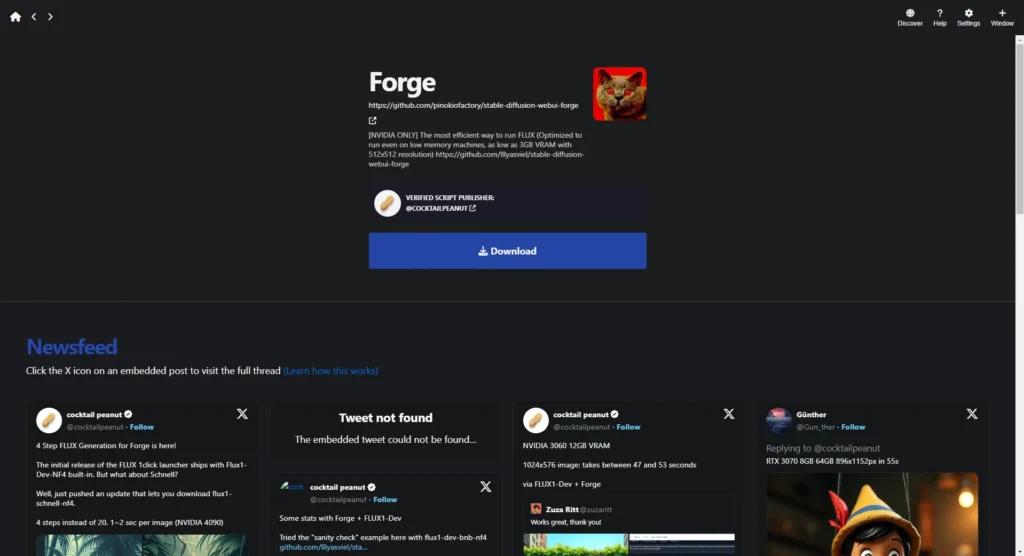
Now it happens. A new window opens and the automatic installation begins.
When it finishes, it launches.
Basic settings
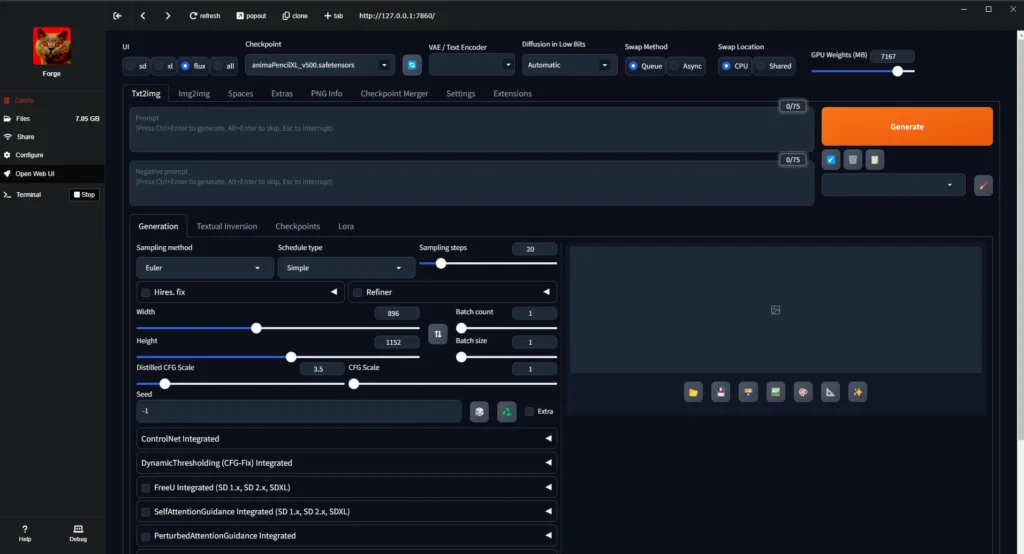
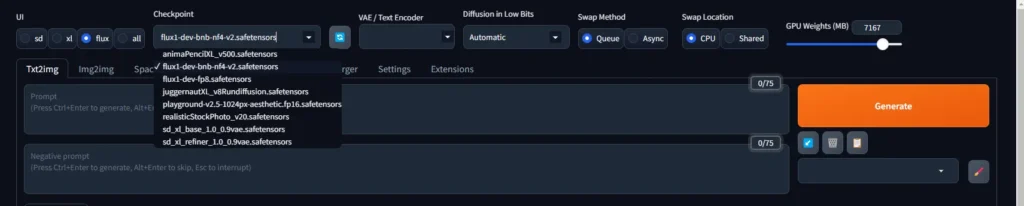
In this drop-down menu, select the model you want to use. Flux, for example.
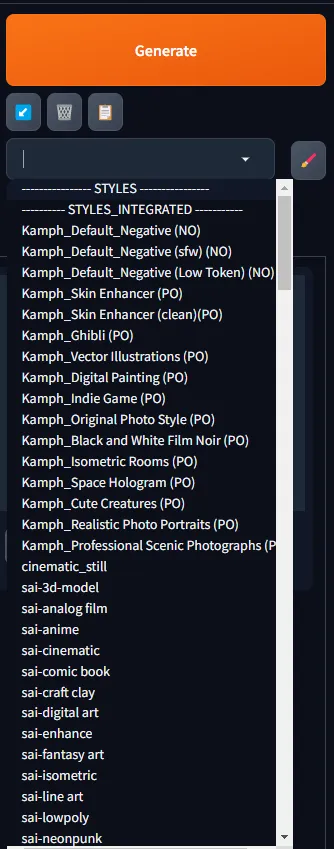
If you want, you can pick one or more styles (presets) from the drop-down menu on the right.
Another important setting is the resolution (size) you want for the image.
Remember that the larger it is, the heavier the load on your computer’s resources.

You Are Ready to Start Creating
That is all you need to start having fun creating your own images with Flux or other available models.
If you are after realism, digital art or specific styles, try different combinations of presets and play with the parameters. You do not need an internet connection to generate images, and best of all, your data never leaves your machine.
Got a modest PC? Try Foocus
If your computer is not a beast and Flux takes forever to generate images, or is simply not compatible, do not worry. There are lighter alternatives that work great too. One of the best is Foocus, a minimalist front-end for Stable Diffusion that uses far fewer resources.
Foocus is also available in the Pinokio marketplace, and it is perfect for anyone with older GPUs or little RAM. It does not produce images as detailed as Flux, but for experimenting, quick tests or just having fun, it is more than enough.
Do not let your hardware hold you back. Give local AI a try with whatever you have on hand.
A Universe of Apps Beyond Images
Remember that Pinokio is not just for generating images. You can also install apps for voice cloning, audio transcription, running code from natural language, or even running your own local AI chat.
Explore the marketplace at your own pace, try out different tools and customize your setup however you like. You are one click away from turning your PC into an artificial-intelligence lab with no reliance on external servers and without spending a cent.
If you enjoyed this guide to installing Flux with Pinokio, you might want to take a look at my Tutorial Guide to Installing and Using LM Studio.