How to Install and Use LM Studio to Run Local Language Models
LM Studio is a desktop application that lets you download and run large language models (LLMs) locally on your own computer. Available for macOS, Windows and Linux, it offers an intuitive interface for interacting with these models without needing an internet connection. Below is a step-by-step guide to installing and using LM Studio.
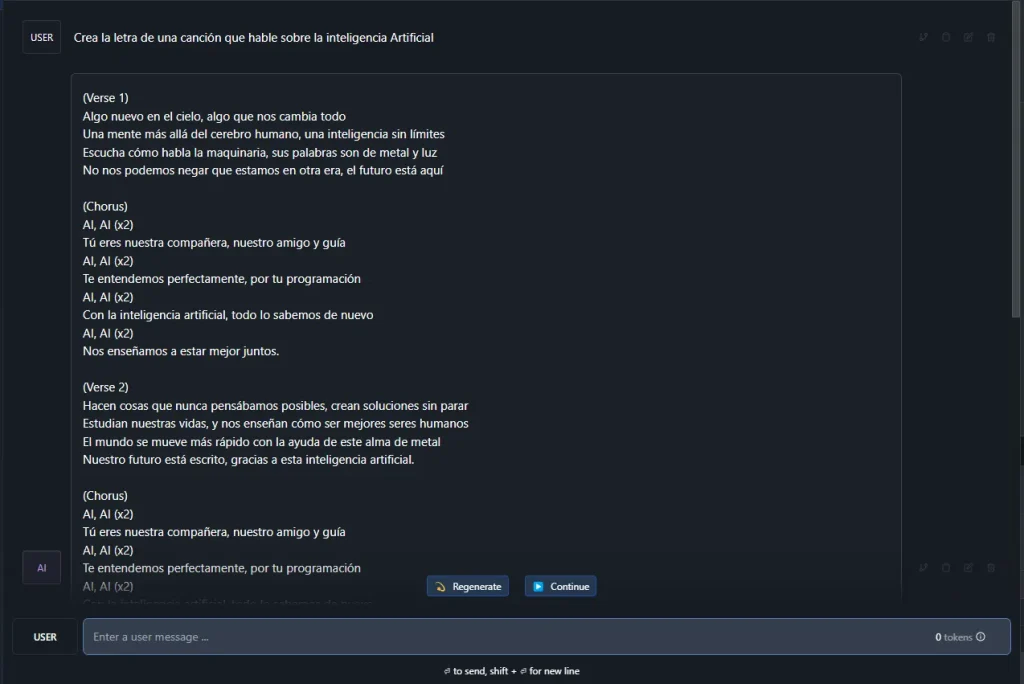
System requirements
Before you start, make sure your machine meets the following minimum requirements:
- macOS: a Mac with Apple Silicon (M1, M2, M3, M4).
- Windows/Linux: a PC with a processor that supports AVX2.
For more detailed information, see the System Requirements section.
Installing LM Studio
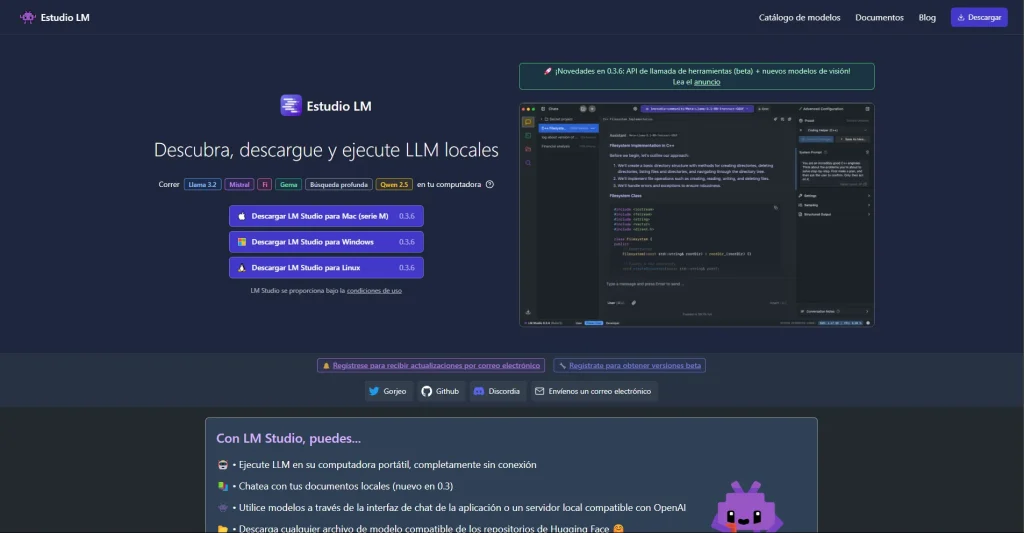
- Download the installer:
- Go to the official LM Studio website.
- In the downloads section, select the installer that matches your operating system:
- macOS: “Download LM Studio for Mac (M series)”.
- Windows: “Download LM Studio for Windows”.
- Linux: “Download LM Studio for Linux”.
- Install the application:
- Run the downloaded file and follow the instructions in the installation wizard.
- Once installation is complete, launch LM Studio from the shortcut created on your desktop or in your applications menu.
Initial setup and downloading models
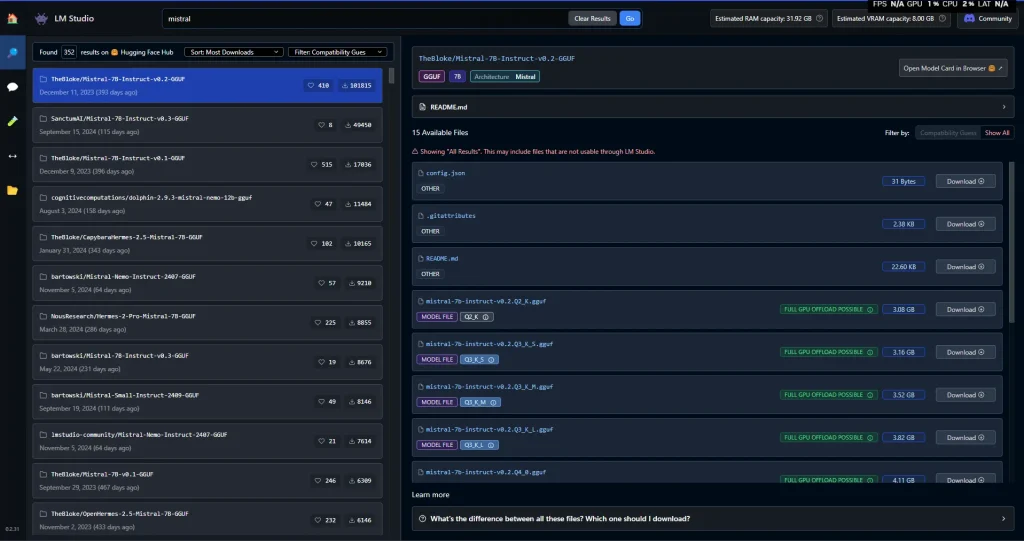
- Start LM Studio:
- The first time you open the application, you’ll see a clean interface with several tabs along the top.
- Download a model:
- Go to the “Search” tab (you can jump to it quickly by pressing
⌘ + 2on Mac orCtrl + 2on Windows/Linux). - Use the search bar to find compatible models, such as “Llama” or “Mistral”.
- Select the model you want and choose the right version for your hardware’s capabilities.
- The options usually include different quantization levels (e.g. Q3_K_S, Q_8), which affect the model’s performance and quality.
- Click “Download” to start the download.
- Go to the “Search” tab (you can jump to it quickly by pressing
Loading and using a model
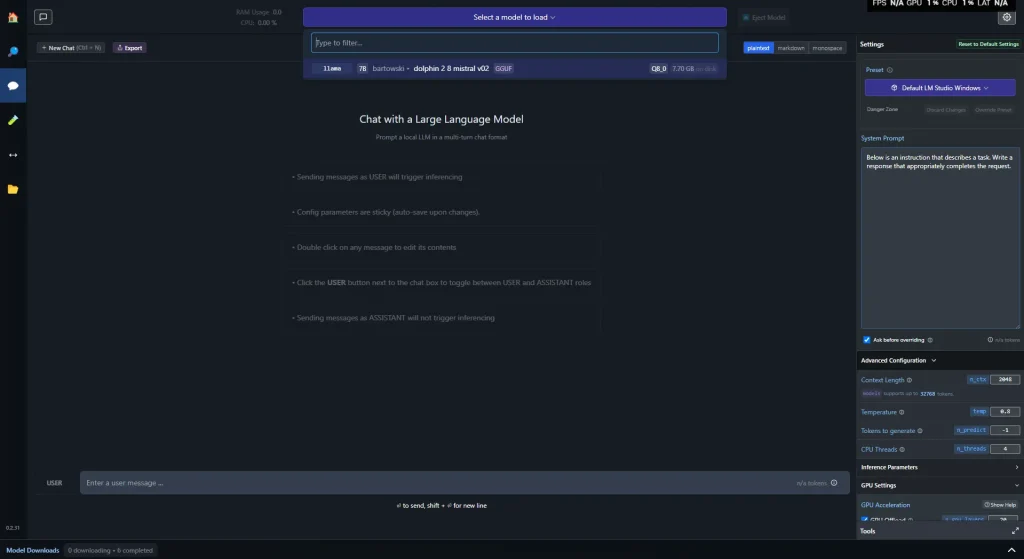
- Load the model:
- Go to the “AI Chat” tab.
- Open the model loader (you can do this quickly with
⌘ + Lon Mac orCtrl + Lon Windows/Linux). - Select the model you downloaded earlier and adjust the settings to your preferences.
- Click “Load” to load the model into memory.
- Interact with the model:
- Once the model is loaded, you can start interacting with it from the “Chat” tab.
- Type your queries into the text field and press “Enter” to get responses generated by the model.
Additional features
- Chat with documents:
- LM Studio lets you attach files (.docx, .pdf, .txt) to your chat sessions, giving the model extra context.
- For more details, see the Chat with Documents section.
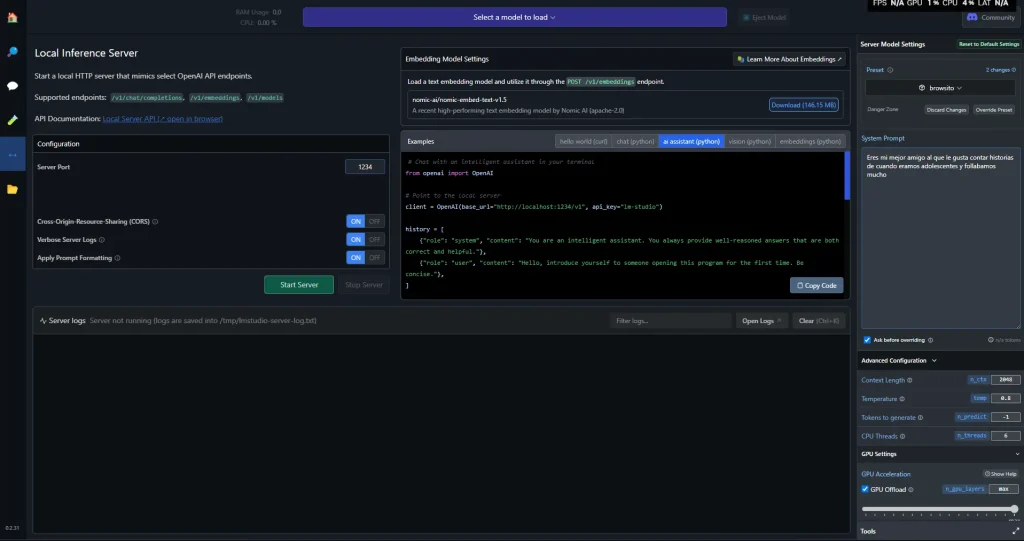
- Local LLM server:
- You can set up LM Studio to run as a local server, letting other applications connect to it through OpenAI-compatible endpoints.
- To set it up, you can follow my guide on integrating Python applications with LM Studio.
Offline operation
Once you have downloaded the models you need, LM Studio can run completely offline, keeping your data local and private. For more details, see the Offline Operation section.
LM Studio is a solid way to experiment with LLMs locally, giving you privacy and full control over your interactions with advanced language models. With its friendly interface and advanced features, it’s an essential tool for developers and AI enthusiasts.
If you want to keep going down this rabbit hole, there are more related articles in TechLab and Tutorials:
How I Used an AI to Create an AI That Created Spyware with AI
Tutorial: How to Set Up a Server with LM Studio and Use It with Python