How to Install and Use Privacy Badger: A Tutorial Guide

Privacy Badger is a browser extension that automatically blocks third-party trackers trying to spy on your activity online. Unlike traditional ad blockers, Privacy Badger doesn’t rely on predefined lists. Instead, it learns on the fly, spotting trackers as you browse and blocking them if they behave in an invasive way.
Main benefits of Privacy Badger
- Automatic tracker protection: no setup needed. It activates and starts protecting you right away.
- Faster browsing: by blocking unnecessary trackers and scripts, it improves load times on many websites.
- Total privacy: unlike other add-ons, Privacy Badger doesn’t collect or share your personal data.
- Easy to use: even if you’re not a tech expert, this tool is perfect for you.
- Optional customization: you can manually adjust tracker permissions if needed.
Let’s install it!
Step 1: Pick your browser
Privacy Badger works with the most popular browsers:
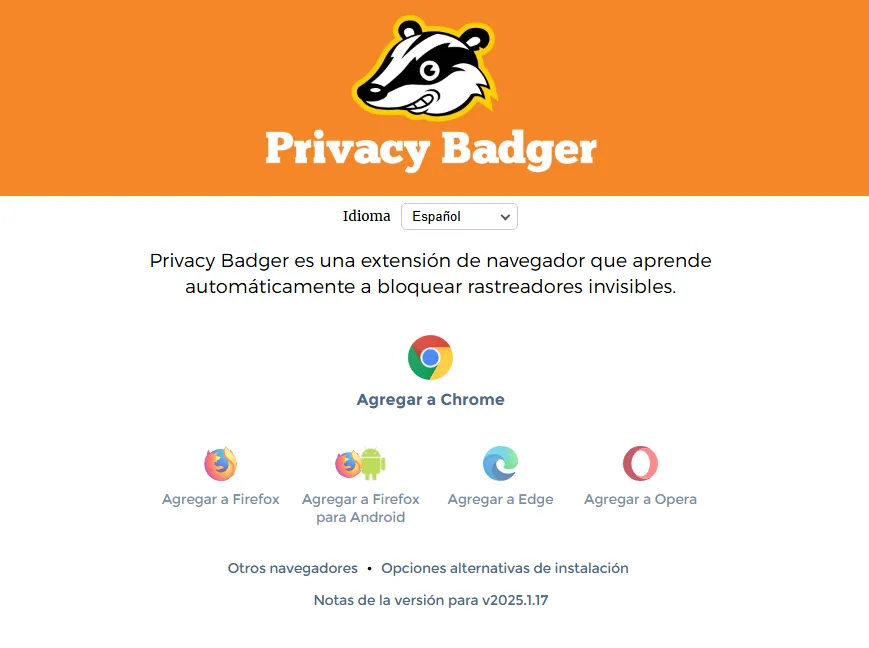
- Google Chrome
- Mozilla Firefox
- Microsoft Edge
- Opera
Before you start, make sure your browser is up to date to avoid compatibility issues.
Step 2: Install Privacy Badger
- Go to the official site: visit https://privacybadger.org to download the extension from a safe source.
- Select your browser: click the button for the browser you’re using.
- Serás redirigido a la tienda oficial de extensiones de tu navegador:
- Chrome and Edge: Chrome Web Store.
- Firefox: Firefox Add-ons.
- Click the “Add to [your browser]” button.
- Confirm the installation by clicking “Add extension.”
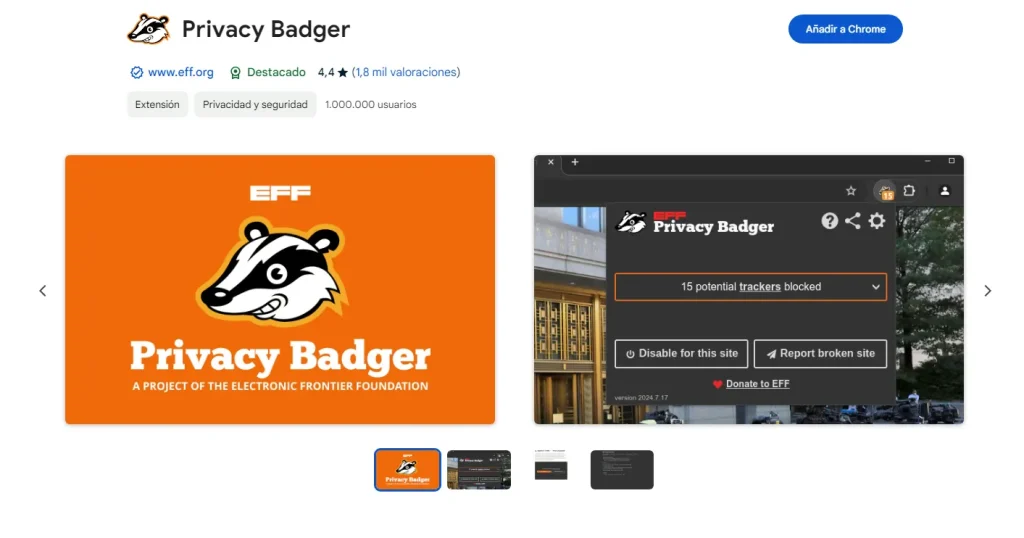
- Within a few seconds, a badger icon will appear in your browser’s toolbar, showing that Privacy Badger is active.
Step 3: Initial setup

- Click the badger icon in your browser’s toolbar.
- En el panel emergente, podrás ver:
- The trackers blocked on the site you’re visiting.
- Options to allow or block specific trackers.
- You don’t need to make manual adjustments. Privacy Badger works automatically and gets smarter over time.
Step 4: Browse more safely

- Browse as you normally would. Privacy Badger will automatically block intrusive trackers.
- If you find a site that isn’t loading properly, open the Privacy Badger panel and adjust the permissions for that specific site.
Is Privacy Badger enough to protect your privacy?
While Privacy Badger is a fantastic tool, it’s important to remember that digital privacy calls for a well-rounded approach. Here are a few recommendations to complement it:
- Use an ad blocker: tools like AddBlock can block even more invasive scripts and annoying ads.
- Switch to a privacy-focused browser: browsers like Brave or Firefox offer more advanced settings to protect you.
- Consider a VPN: to anonymize your connection and keep your IP address from being tracked.

In this age of digital surveillance, tools like Privacy Badger are a breath of fresh air. It doesn’t just block trackers — it also gives you back a bit of that sense of freedom we had in the early days of the internet. Easy to install, effective, and backed by a trustworthy organization like the EFF, this add-on is a must-have for anyone who values their privacy.