Tutorial: Installing and Using rtl_tcp from the Official Linux Repositories
Installing rtl_tcp from the Official Linux Repositories
rtl_tcp is a tool that lets you access an SDR (Software Defined Radio) receiver such as the RTL-SDR over a network, making it easy for other SDR-compatible programs to use it remotely. Below is a step-by-step guide to installing and using rtl_tcp from the official repositories of most Linux distributions.
Installing rtl_tcp
Step 1: Update the package list
Before installing any package, make sure the package list is up to date. Run:
For Debian/Ubuntu-based distributions
sudo apt updateFor Fedora-based distributions.
sudo dnf updateFor Arch-based distributions.
sudo pacman -Syu Step 2: Install rtl-sdr
The rtl_tcp tool is part of the rtl-sdr package. Install it with the following command for your distribution:
For Debian/Ubuntu-based distributions
sudo apt install rtl-sdrFor Fedora-based distributions.
sudo dnf install rtl-sdrFor Arch-based distributions.
sudo pacman -S rtl-sdrThis installs rtl_tcp along with other useful tools like rtl_fm and rtl_test.
Step 3: Verify the installation
Plug the RTL-SDR device into a USB port on your computer. Make sure the system recognizes it correctly.
Check that rtl-sdr installed correctly by running:
rtl_testIf it installed correctly and the system detects it, you should see a process start in the terminal:

To stop the process, press Ctrl + C in the terminal.
Check that rtl_tcp installed correctly by running:
rtl_tcp -hYou should see something like this:

If everything went well, the rtl_tcp server is ready to use.
Using rtl_tcp
Step 1: Start rtl_tcp
To start the rtl_tcp server so it listens on all network interfaces on port 1234, use the following command:
rtl_tcp -a 0.0.0.0 -p 1234-a 0.0.0.0: listen on all network interfaces. You can specify a particular IP address if you only want it to listen on a specific interface.-p 1234: the port the server will run on.
For example, if your computer’s local IP is 192.168.1.100 and you want to use port 8050, the command would look like this:
rtl_tcp -a 192.168.1.100 -p 8050
Step 2: Connect an SDR client
From another computer on the network, or from the same computer, you can connect an SDR-compatible program (such as GQRX, SDR#, SDRConsole or any other that supports rtl_tcp) using the server’s IP address and port.
For example, in SDR#:
Open SDR# while rtl_tcp is running.
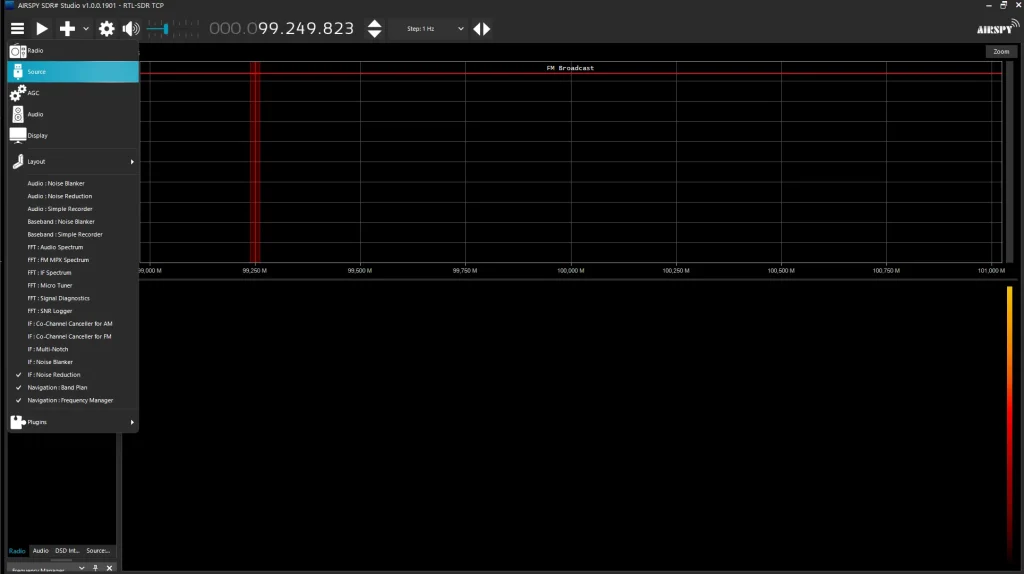
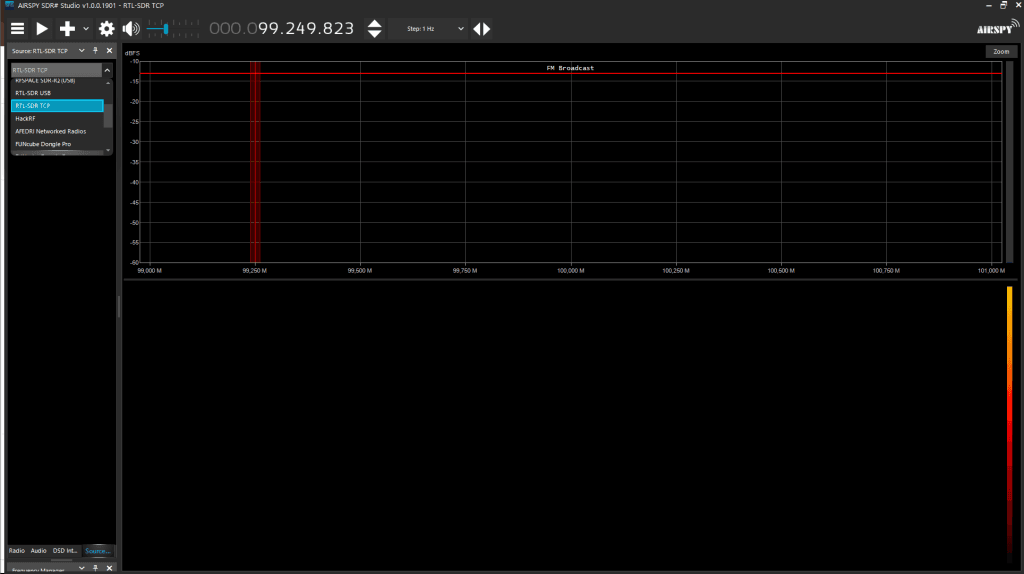
Select “RTL-SDR (TCP)” from the device list.
In the settings, enter the server’s IP address (for example, 192.168.1.100) and the port (8050).
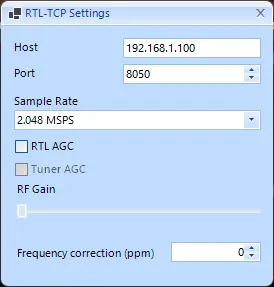
Click the “X” and you are ready to go.
Stopping the rtl_tcp server
To stop the rtl_tcp server, simply press Ctrl + C in the terminal where it is running.